ChatGPT has no button that saves one conversation as a PDF or Word file. You can still get a chat out: with ChatGPT's own account export, a shared link, your browser's print window, copy and paste, or a browser add-on.
We read OpenAI's help pages on 24 November 2026. Here is what each way gives you.
1. ChatGPT's own "Export data"
On the web, OpenAI's help page on exporting your data gives these steps:
- Sign in to chatgpt.com and open your profile menu.
- Click Settings, then Data controls.
- Under Export data, click Export, then Confirm export.
What you get, by that page:
- An email or text message with a Download data export link. OpenAI says an export can take up to 7 days to arrive, and the link expires 24 hours after you receive it.
- A ZIP file of your whole account. It holds a viewer page (index.html) where you can search your conversations, and the conversations themselves as JSON. Older exports have a chat.html file instead.
- It is not available while you are logged out, or in ChatGPT Business, Enterprise or ChatGPT for Healthcare workspaces.
So it is a backup of everything, not a PDF or Word file of the one chat you have open.
2. A shared link
The Share button makes a link to the conversation. By OpenAI's shared links page, anyone who has a link made from a personal account can view the conversation, and the link shows the chat as it was when you made or updated it. It is a web address, not a file, and it is public to anyone who gets the link.
3. Print the page to PDF
Open the chat on a computer, press Ctrl+P (Cmd+P on a Mac) and choose "Save to PDF" (Firefox) or "Save as PDF" (Chrome). This needs nothing extra.
The print window prints the page as it is, with the side bar and buttons around the chat. On a long chat, check that the PDF starts at your first message and has every reply before you rely on it.
For Word, there is no print route. Copy and paste is the free way.
Two ChatGPT outputs do have their own download. By OpenAI's help pages, a canvas document has a Download button at the top right of the canvas, for PDF, Markdown or Word (.docx). A finished deep research report can be downloaded as Markdown, Word or PDF. Both save that document or report only, not the conversation around it.
4. Copy and paste
Select the messages, copy, and paste into Word, Google Docs or a text editor. This is fine for one answer. For a whole chat it is slow, and you need to check that headings, lists, tables and code blocks came across the way you want.
5. Threadkeep, an add-on for Firefox
Threadkeep is a free add-on we make. Version 2.0 is on Firefox; the Chrome update is in review. It saves the ChatGPT conversation you have open to a file on your computer, or to a library in your browser.
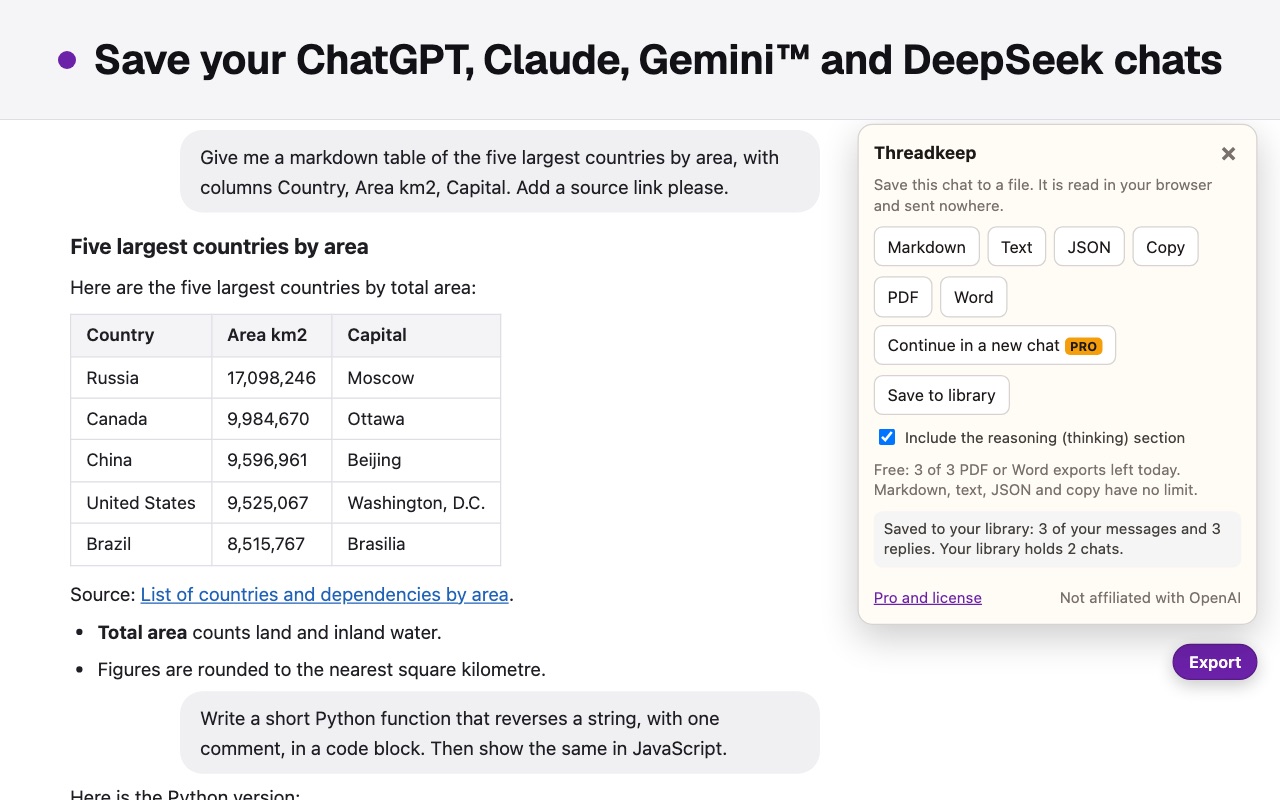
Threadkeep 2.0.0 on a made-up test page built like a ChatGPT conversation.
- Install Threadkeep from Firefox Add-ons.
- Open the conversation on chatgpt.com.
- Click the Threadkeep button in Firefox's toolbar. On ChatGPT it asks for nothing at install, so the first click on a tab opens the panel there. To have its purple Export button on ChatGPT every time, click Show Threadkeep on chatgpt.com every time in the panel, or turn ChatGPT on in the add-on's settings. Firefox asks you to allow the site.
- The first time, a short notice says what is read. Nothing is read until you click I agree.
- Click PDF or Word. Or Markdown, Text, JSON or Copy.
- The panel says how many of your messages and how many replies it saved. If it warns that something may be missing, run it again.
What you get:
- PDF opens the chat in a new tab with Firefox's print window. Choose "Save to PDF". The text is real text you can select and search, without ChatGPT's side bar and buttons. If the print window does not open, click Save as PDF at the top of that tab.
- Word downloads a .doc file that Word opens. It is an HTML .doc file, not a .docx.
- Markdown, Text and JSON download a file. Copy puts the chat on the clipboard as Markdown.
- Code blocks keep their indentation, tables stay tables, and lists and links stay.
- On a long chat Threadkeep scrolls the chat once, after your click, so the page shows the earlier messages. Do not scroll while it reads.
To keep the chat as well, click Save to library. See how the library works.
Limits
- Free: Markdown, text, JSON and copy have no limit. PDF and Word are 3 exports a day. Pro removes that limit and costs USD 4.99 a month, USD 29 a year or USD 59 once, for one browser. You get it from Pro and license in the panel.
- ChatGPT works in Threadkeep 2.0.0, which is on Firefox. The Chrome Web Store has version 1.2.0 today, which does not work on ChatGPT. The Chrome update to 2.0.0 is in review.
- It saves the conversation you have open, one at a time. For every chat at once, use ChatGPT's "Export data".
- Not saved: pictures (a picture stays as a short line, or as a link in Markdown) and uploaded files.
- Threadkeep is made by SKILLMERC. It is not made by, endorsed by or affiliated with OpenAI. ChatGPT is a trademark of OpenAI.
Questions
Is the chat uploaded anywhere? No. The chat is read in your browser and saved to your computer, or to the library in your browser. Threadkeep needs no account and has no analytics and no ads. The only thing it ever sends is a Pro license key check to Freemius, our payment and licensing provider, and only if you buy Pro. Firefox asks you first. No chat text is in it.
Does Threadkeep use my ChatGPT login? It reads the page you already have open. It does not use your login to fetch anything in the background.
Can I get a .docx file? Not from Threadkeep. Its Word file is a .doc that Word opens; you can then use "Save As" in Word to make a .docx.
Threadkeep for Firefox and Chrome
Free extension: saves the AI chat you have open as Markdown, text, JSON, PDF or Word. Version 2.0 on Firefox adds a library you can search. The chat stays in your browser.
More guides
- How to export a DeepSeek chat to PDF, Word or Markdown (free ways and a Firefox add-on)
- DeepSeek "Length limit reached": how to continue a long chat in a new chat
- How to save a Claude chat as Markdown or PDF (free ways and a browser add-on)
- How to save Gemini chats: Export to Docs, Google Takeout, PDF and Markdown
- How to keep a searchable library of your ChatGPT, Claude, Gemini and DeepSeek chats