Good answers get lost in a long chat history, and each AI app keeps its own. To find them again, keep copies of the chats you want in one place you can search. You can do that by hand with each app's export and a folder of files, or with a browser add-on that keeps a library for you.
1. Each app's own export
Each app can send you a copy of your whole account. We read their help pages on 24 November 2026:
- ChatGPT: Settings > Data controls > Export data. OpenAI says the ZIP holds a viewer page (index.html) where you can search the conversations in that export. Steps and limits.
- Claude: Settings > Privacy, on the web app or Claude Desktop. The download link expires 24 hours after it is made. Steps and limits.
- Gemini: Google Takeout, under My Activity > Gemini Apps. Steps and limits.
- DeepSeek: Settings, under "Data", "Export data". Steps and limits.
These are good backups. But each one is a snapshot of one app on one day, each comes in its own format, and you wait for an email each time.
2. A folder of Markdown files
The do-it-yourself library: save each chat you want to keep as a Markdown or text file in one folder, with a clear file name. A text editor that searches a whole folder, or your computer's file search, can then find words inside them.
This costs nothing and the files are yours. The work is in the saving: copy and paste, or a print to PDF, for each chat, and PDF text is harder to search and edit than plain text.
3. The Threadkeep library, in Firefox
Threadkeep is a free add-on we make. Version 2.0 is on Firefox; the Chrome update is in review. Version 2.0 keeps the chats you choose in a library inside Firefox, from ChatGPT, Claude, Gemini, Gemini Notebook and DeepSeek.
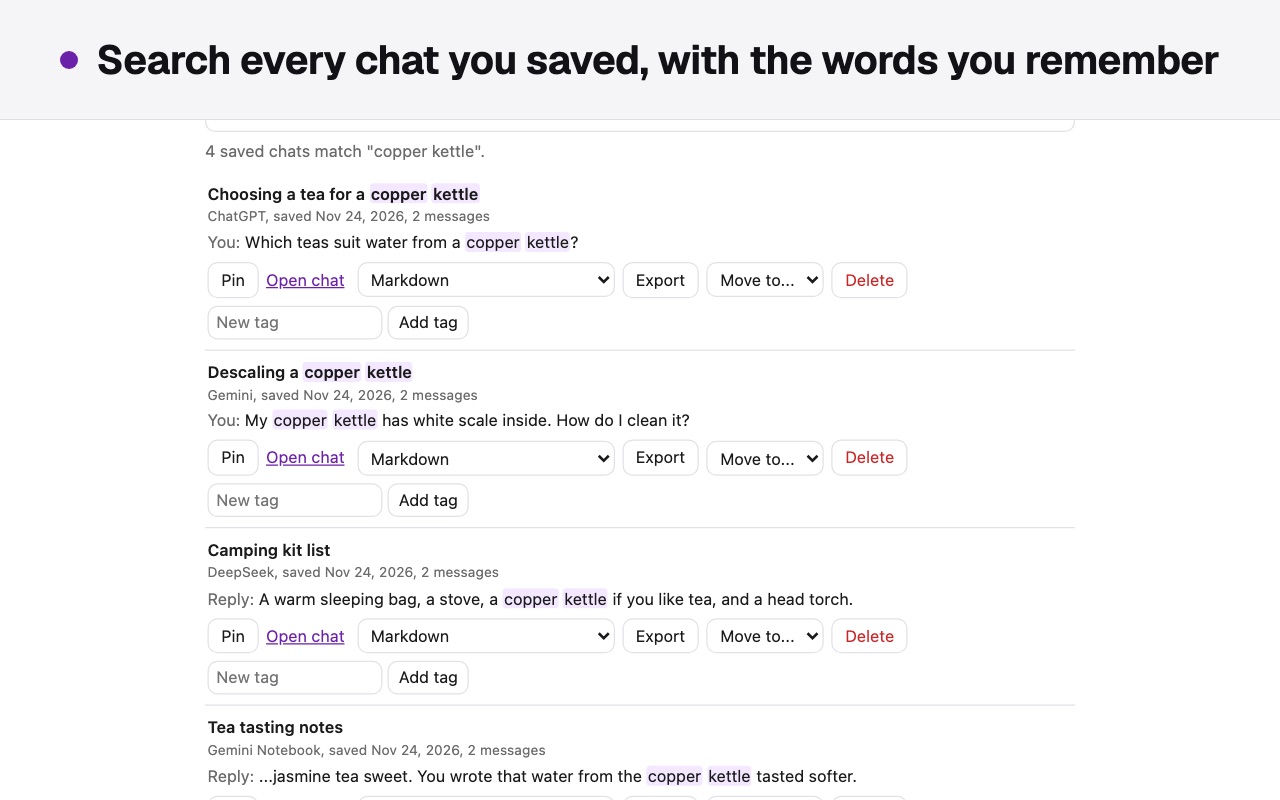
The Threadkeep 2.0.0 library, filled with made-up chats.
Save a chat
- Install Threadkeep from Firefox Add-ons.
- Open a chat and click the purple Export button on the page, or the Threadkeep button in Firefox's toolbar. On ChatGPT and Claude it asks for nothing at install: the toolbar button opens it on that tab, and the panel offers to show it there every time.
- The first time, a short notice says what is read. Nothing is read until you click I agree.
- Click Save to library. Save the same chat again later and the copy is updated. Nothing is saved unless you click.
Find it again
- Open the library from the add-on's settings page: Open your library.
- Type in Search saved chats. Each result shows a short snippet with your words in it. Filter by site with the All sites menu.
- Click Open chat to go back to the original chat on its site.
Keep it in order
- Folders, with one level of subfolders. Pin the chats you use most. Add tags and filter by tag.
- Export any saved chat from the library as Markdown, text, JSON, PDF or Word.
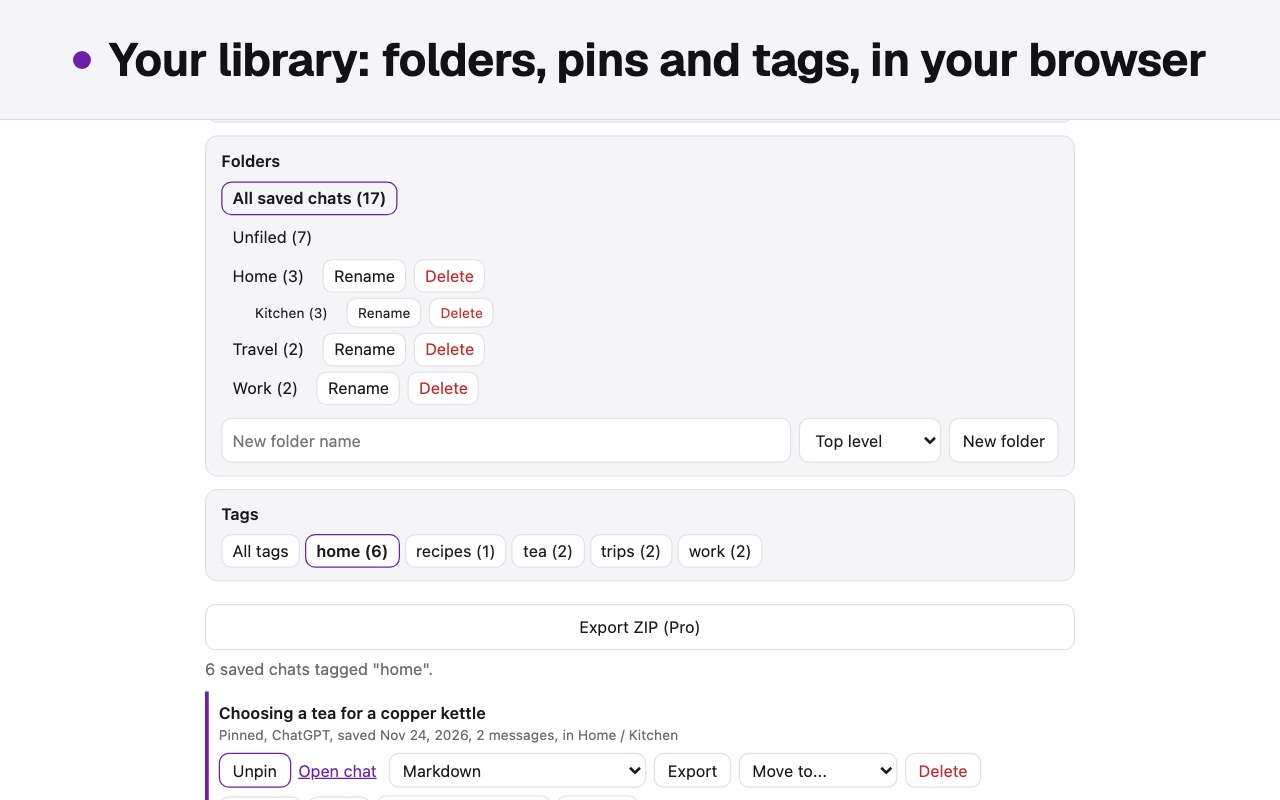
Folders and tags in the Threadkeep 2.0.0 library, with made-up chats.
Back it up
- Back up library saves the whole library to one file on your computer. Restore from file brings it back: it adds the chats that are new, replaces a chat you already have with its copy in the file, and keeps every other saved chat.
- Removing the add-on deletes the library from Firefox. Back it up first if you want to keep it.
Free and Pro
- Free: 100 saved chats, 5 folders (subfolders included) and 5 different tags. Pins have no limit. Search shows every result. Markdown, text, JSON and copy have no limit; PDF and Word are 3 exports a day.
- Pro: no limit on saved chats, folders, tags, PDF or Word, and Export ZIP: a folder or a search result as one ZIP file, with one Markdown file per chat plus an index. USD 4.99 a month, USD 29 a year or USD 59 once, for one browser. You get it from Pro and license in the panel.
Limits
- The library is in Threadkeep 2.0.0, which is on Firefox. The Chrome Web Store has version 1.2.0 today, which has no library and works on DeepSeek, Gemini and Gemini Notebook only. The Chrome update to 2.0.0 is in review.
- The library lives in one browser. It does not sync between computers. Use Back up library and Restore from file to move it.
- It saves the text of each message. Not saved: pictures (a picture stays as a short line, or as a link in Markdown), uploaded files, the content of Claude artifacts (a title line is kept) and the reasoning ("thinking") section. In a notebook, only the chat is read, not your sources or notes.
- A PDF or Word file made from the library shows each message as plain paragraphs. For lists, code and tables in a PDF or Word file, export from the panel on the chat itself.
- Threadkeep is made by SKILLMERC. It is not made by, endorsed by or affiliated with OpenAI, Anthropic, Google or DeepSeek. ChatGPT is a trademark of OpenAI. Claude is a trademark of Anthropic, PBC. Gemini, Gemini Notebook and NotebookLM are trademarks of Google LLC. Use of these trademarks is subject to Google Permissions.
Questions
Where are my saved chats kept? In your browser, on your computer. Nothing is sent to us or to anyone else. Threadkeep needs no account and has no analytics and no ads. The only thing it ever sends is a Pro license key check to Freemius, our payment and licensing provider, and only if you buy Pro. Firefox asks you first. No chat text is in it.
Does it save my chats by itself? No. It saves a chat only when you click Save to library. It does not use your login to fetch anything in the background.
Threadkeep for Firefox and Chrome
Free extension: saves the AI chat you have open as Markdown, text, JSON, PDF or Word. Version 2.0 on Firefox adds a library you can search. The chat stays in your browser.
More guides
- How to export a DeepSeek chat to PDF, Word or Markdown (free ways and a Firefox add-on)
- DeepSeek "Length limit reached": how to continue a long chat in a new chat
- How to export a ChatGPT conversation to PDF or Word (free ways and a browser add-on)
- How to save a Claude chat as Markdown or PDF (free ways and a browser add-on)
- How to save Gemini chats: Export to Docs, Google Takeout, PDF and Markdown